OCI India Photo
Photo, Signature & Document PDFs
Created easily on your phone
Prepare all files needed for your OCI application
right on your phone.
On-device processing keeps your data private.
Photo, Signature & Document PDFs
Created easily on your phone
Prepare all files needed for your OCI application
right on your phone.
On-device processing keeps your data private.
On this page you can check the size, background, file format, and points to note for OCI photos.
With the app, you can create both the print-ready data and the online application data on your iPhone.
Automatically detects your face and guides positioning to meet OCI requirements (square, frontal, light-colored background).
Face photo as JPEG (900×900, under 500KB), signature/thumb as JPEG (900×300, under 500KB), documents as category-based PDFs.
All photo processing happens entirely on your iPhone. Nothing is sent to any server.
Face photo auto-resized to 900×900, signature adjusted to 3:1 ratio, PDFs compressed under 500KB or 1000KB.
Correct backgrounds to light grey or light blue, adjust brightness and contrast to meet OCI requirements.
Verify all files are ready before submission — photo, signature/thumb, and document PDFs. Checklist of acceptance criteria included.
Preview before purchase
Photo Guide
Even a slightly non-compliant photo can be rejected during your OCI application. Check these points before saving.
These are the composition requirements for OCI photos. Keep face position and margins close to this template.
| Format | JPEG / JPG |
| Size | 200 × 200 to 900 × 900 px (square) |
| Aspect ratio | 1:1 (square) |
| Background | plain light color; central wording says not white |
| File size | 200 KB maximum |
| Face | 80% face coverage (source wording; not a crop algorithm) |
| Size | 51 × 51 mm (2 × 2 in) |
| Format | color |
| Background | plain light-colored background; print specification |
| Face | 25–35 mm |
Source: OCI photo requirements
The person faces forward, the background is light-colored, and the face is clearly visible with a natural expression.
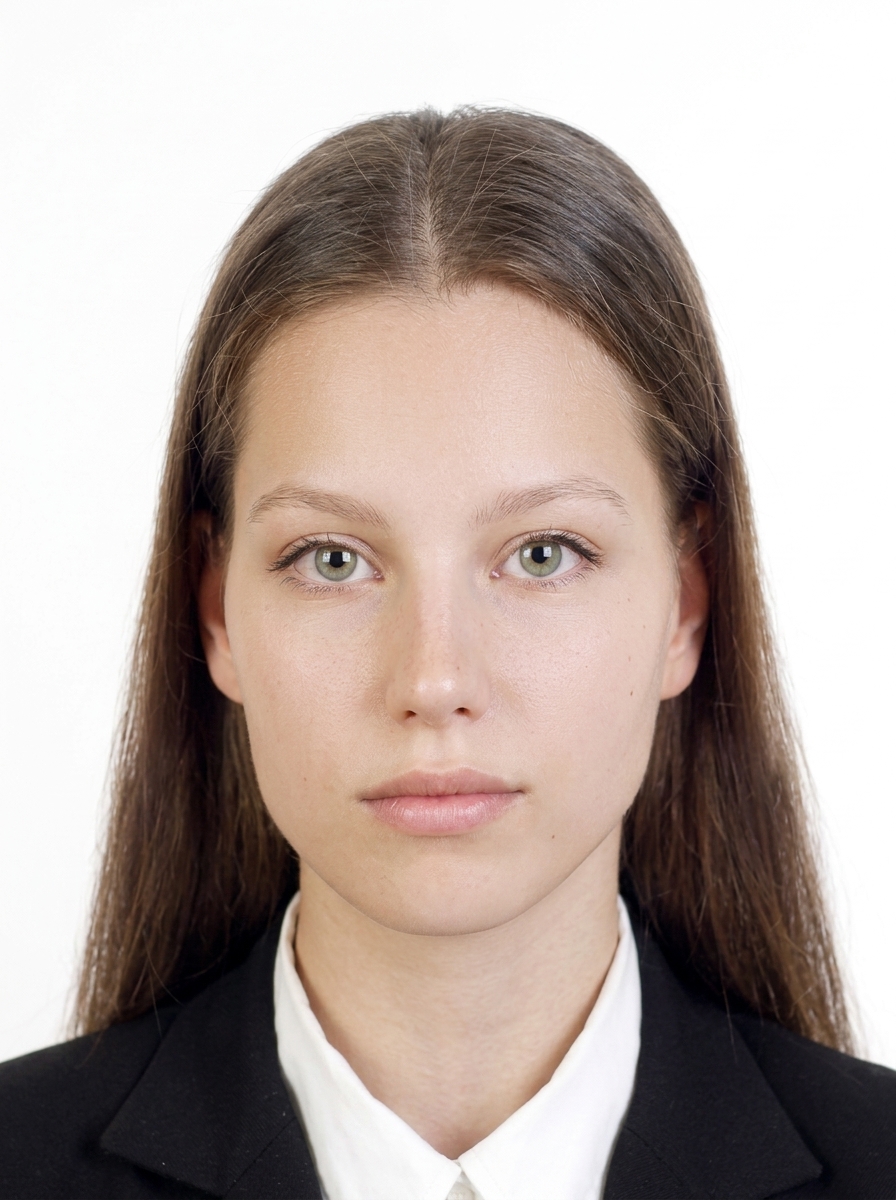
These are common reasons a photo may be rejected during an OCI application.
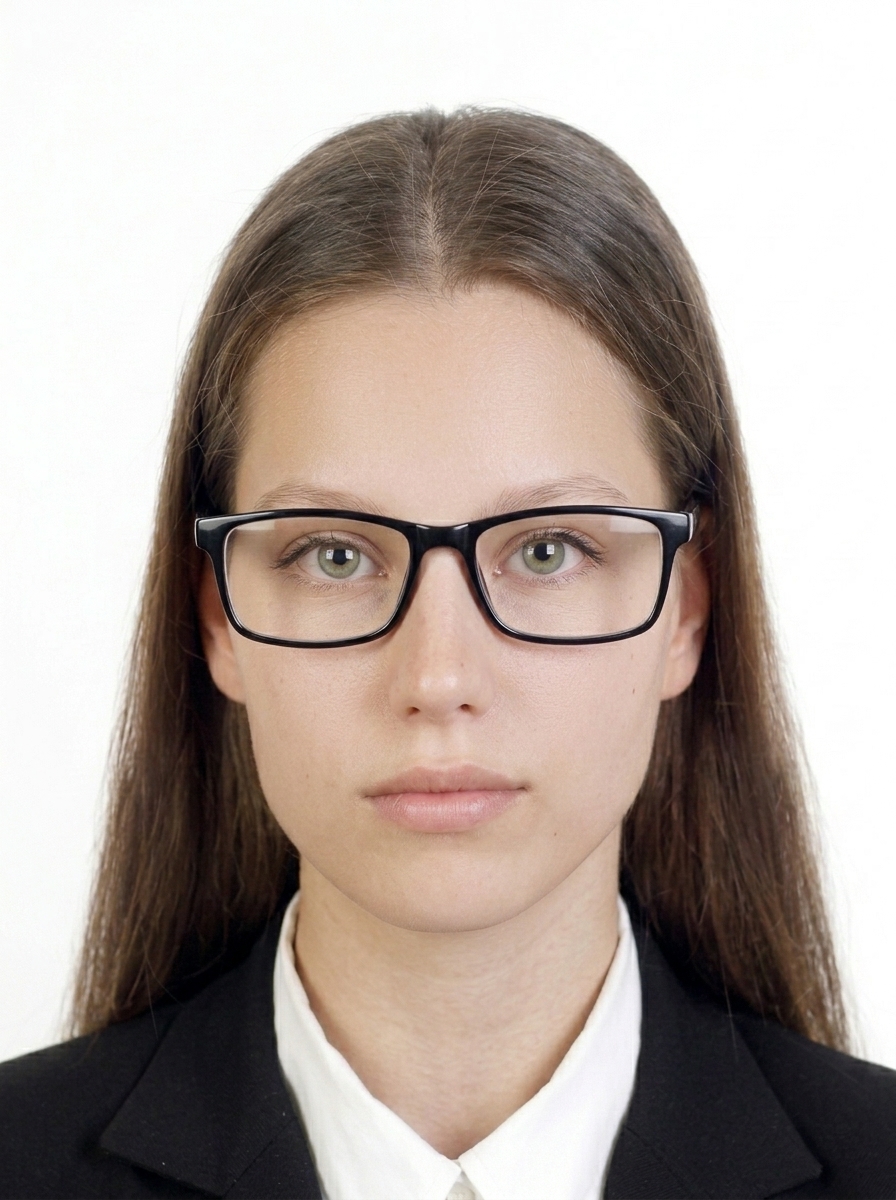
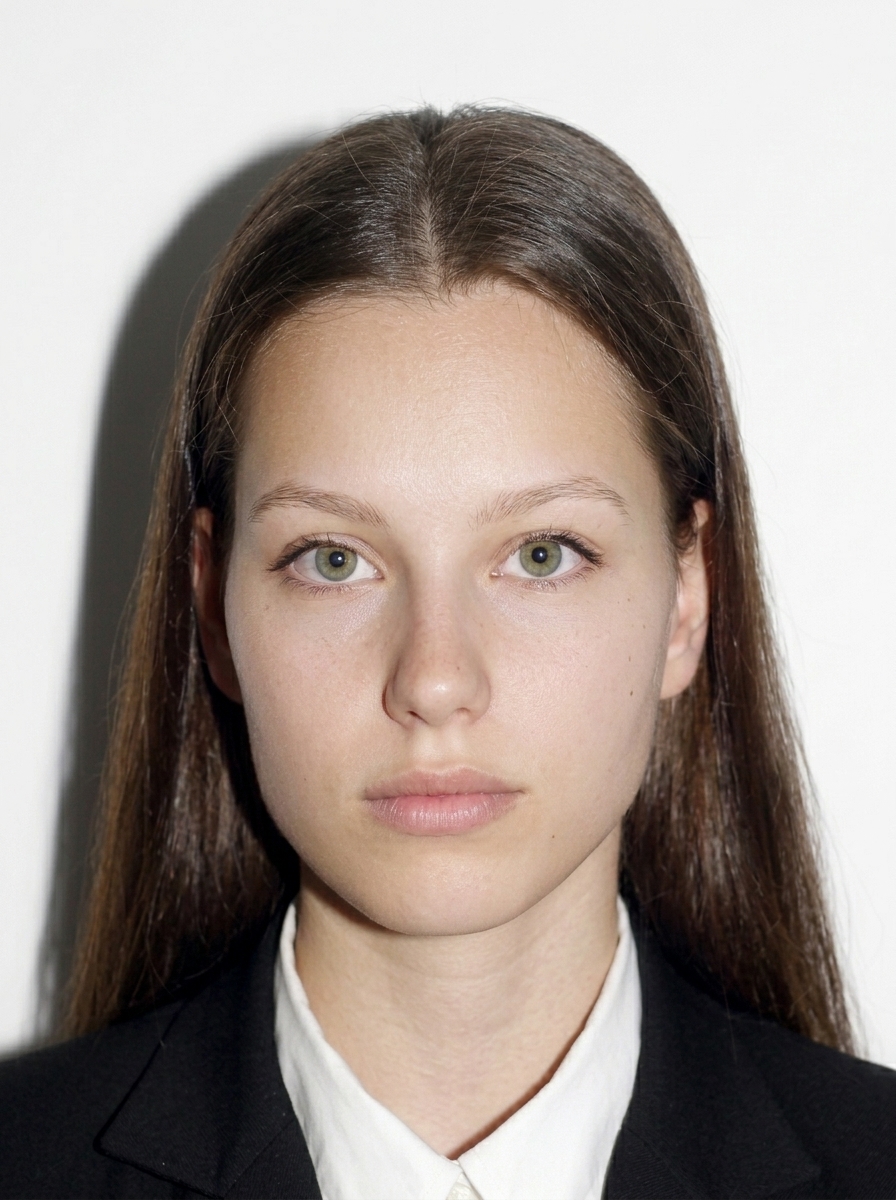



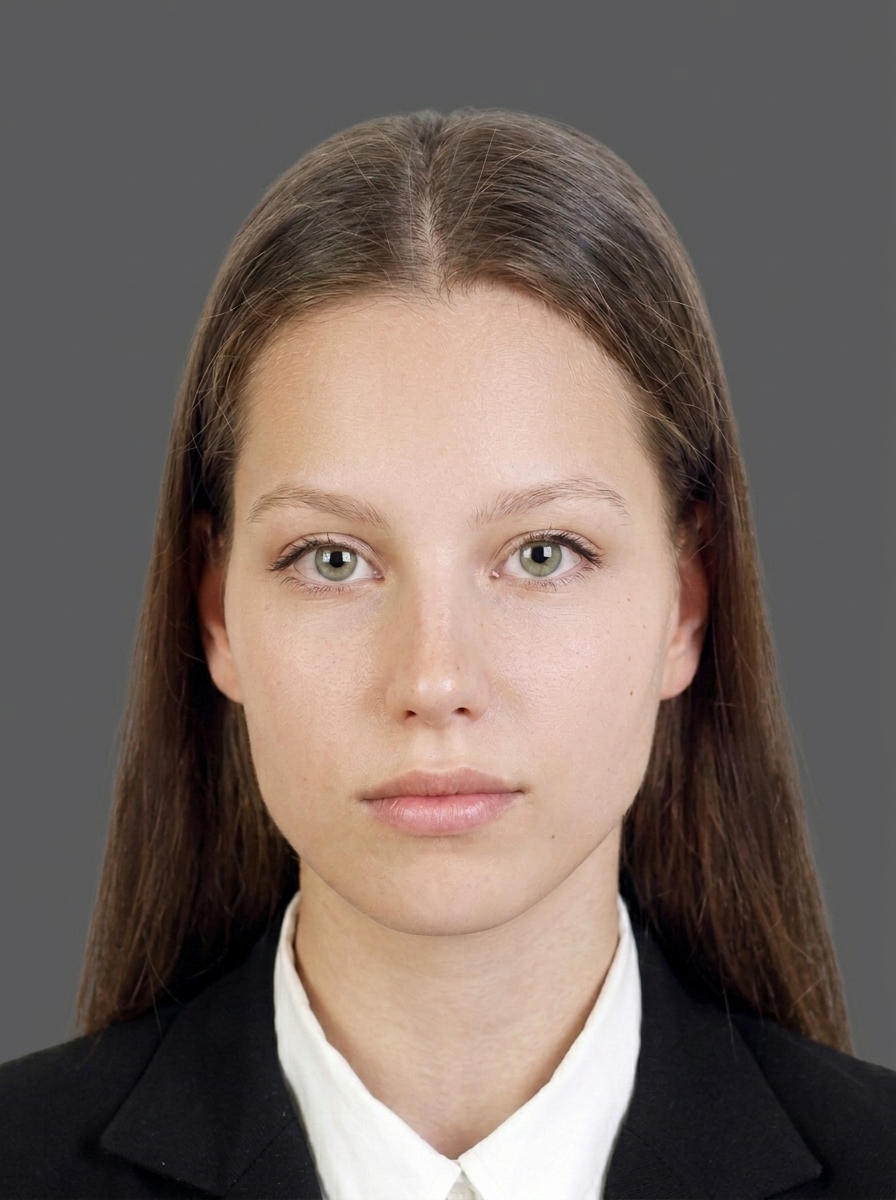
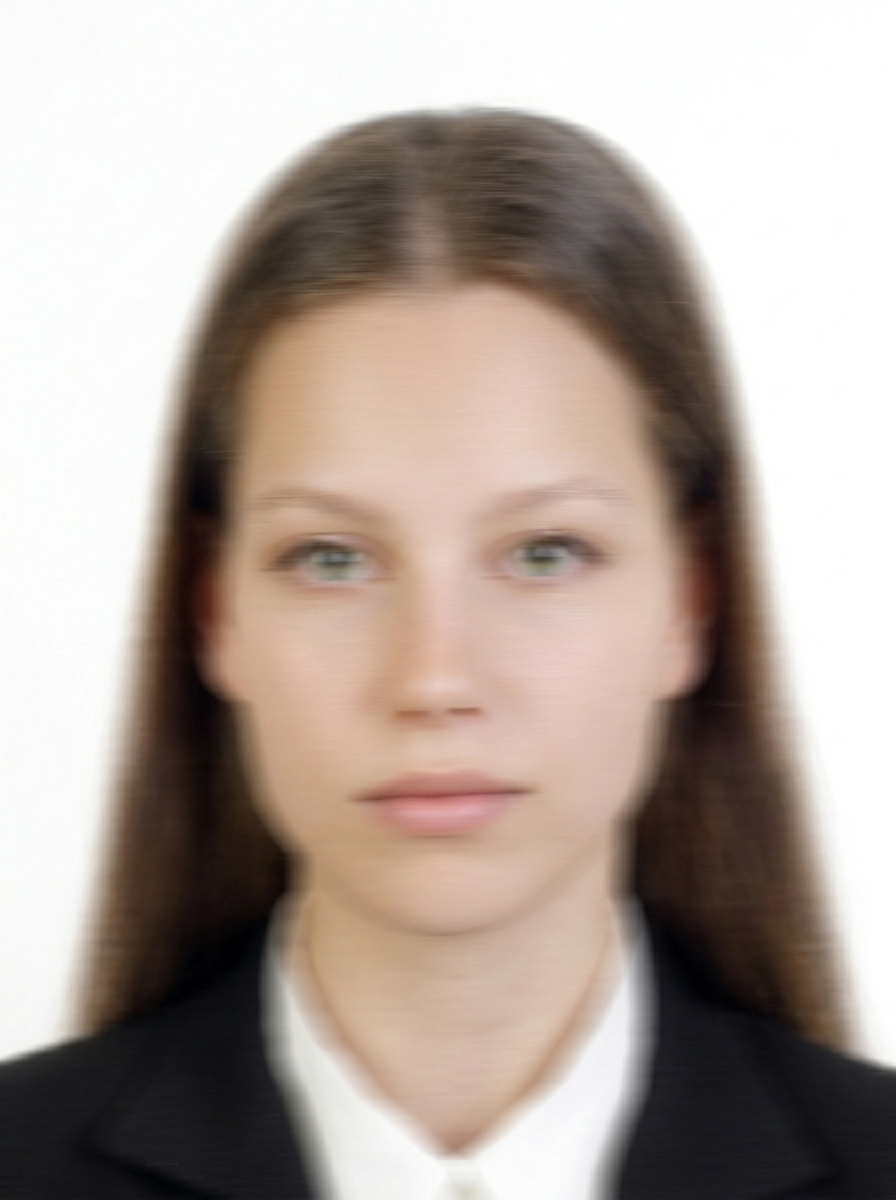
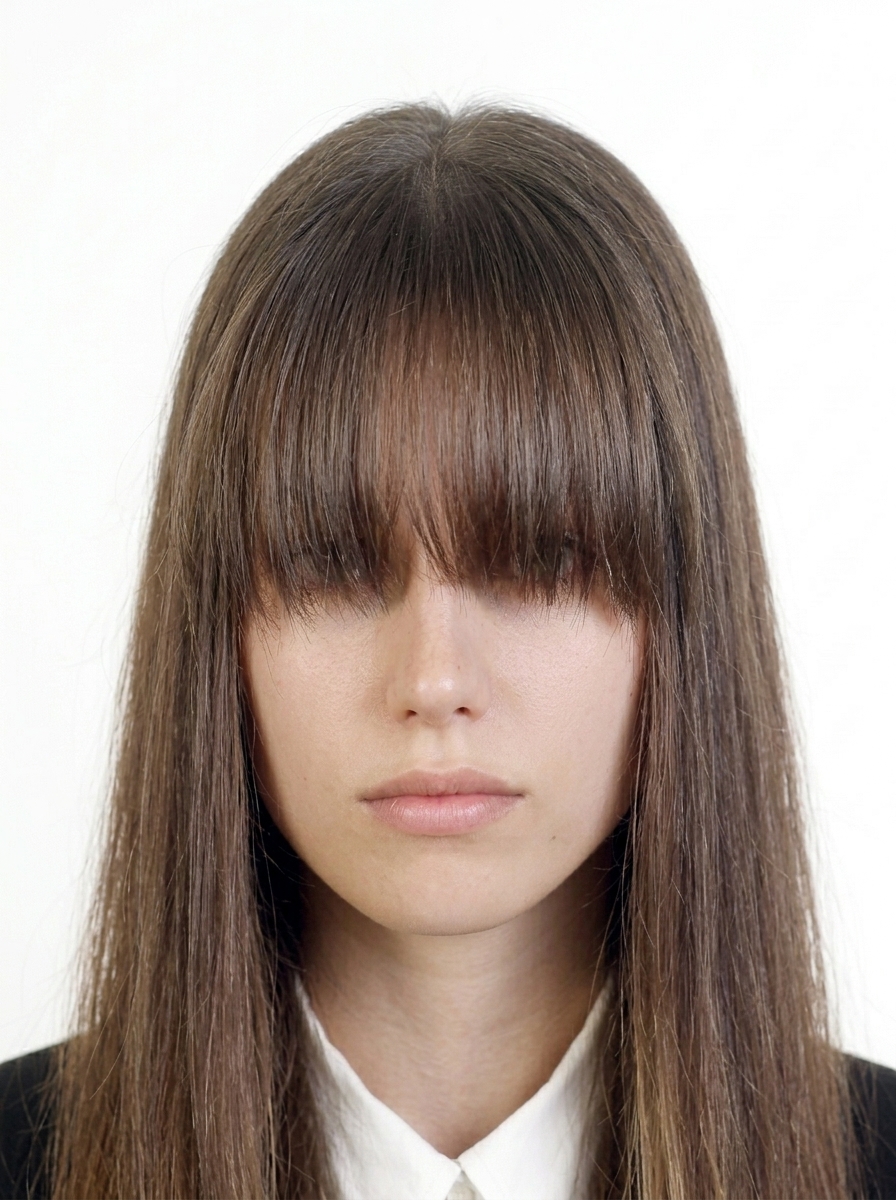
OCI authorities do not accept photos that have been digitally altered to change your appearance. Use the app for background color adjustment and brightness adjustment only.
Official guidance OCI Photo Requirements
Complete guide to photo, signature, and document requirements for OCI
Go to HomeJPEG format, 900×900px square, 10KB–500KB, frontal, eyes open, no glasses, light-colored background (NOT white — light grey or light blue recommended), no shadows, no borders. This app automatically creates a file that meets these requirements.
Simply photograph your signature on paper with your camera, or select it from your photo library. The app will automatically adjust to 3:1 ratio (900×300px) and compress to under 500KB. For minors under 5, left hand thumb impression is also supported.
No. All processing happens entirely on your iPhone. Face detection, background correction, PDF generation — everything runs on-device. Your photos are never sent to any server.
JPEG format, 900×300px (width:height = 3:1), 10KB–500KB, blue or black ink on white background. For children under 5, upload left hand thumb impression instead.
No. This app is a file preparation tool only. You need to submit your OCI application yourself at ociservices.gov.in. The app does not guarantee application acceptance or approval.
OCI applications can be submitted at any time. Processing typically takes 4–8 weeks. We recommend checking the VFS/BLS checklist for your jurisdiction to confirm required documents in advance.
JPEG format, 900×900px square, 10KB–500KB. The face should occupy 50–70% of the photo. This app automatically adjusts to the correct size.
No, wearing glasses (including sunglasses) is not allowed for OCI photos. Please remove glasses before taking the photo, even for vision correction.
Photos must be taken within the last 6 months. Using an older photo may result in rejection. This app recommends taking a new photo.
OCI requires a light-colored background that is NOT white (white is rejected in US, France, etc.). Light grey or light blue is recommended. This app provides background color correction.
Common reasons include: white background (rejected in many regions), wrong dimensions (not 900×900), wrong signature ratio (not 3:1), wearing glasses, shadows, old photo, face too small/large. This app detects and warns about these issues.
PDF format required, one file per category, 500KB (Safe Mode) or 1000KB (Standard Mode). Text must be clearly readable. This app compresses automatically while keeping text readable.
The same requirements apply to children: white background, facing forward, eyes open, no glasses. For infants, lay the child on a white sheet and photograph from above, or use a car seat with a white cloth draped over it.
The app generates 4×6 inch or L-size print sheets. Save to your photo library and print at a photo lab, drugstore, or home printer. Use photo paper at actual size with no scaling.
Capture and preview for free. Pay only when you save.
Download on the App Store (free)