US VISA PHOTO GUIDE
US visa photo upload error fixes
Troubleshoot DS-160 photo upload errors caused by HEIC, non-JPEG files, wrong pixels, non-square crops, file size, or browser issues.
Last checked: June 29, 2026
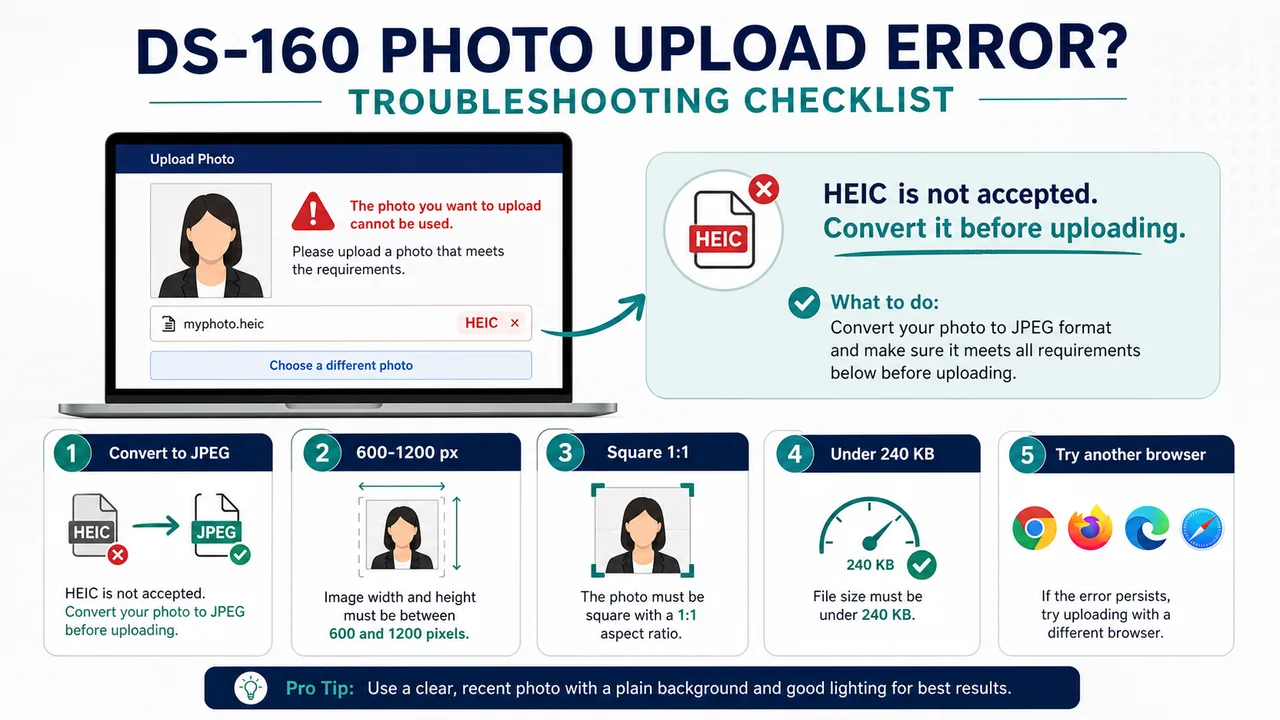
Quick answer
- Confirm the file is real JPEG.
- Re-crop if it is not square or outside 600-1200 px.
- Re-save or try another browser if the official screen still fails.
Common upload error causes
A US visa photo upload error often comes from file format or dimensions rather than the face itself. First check whether the file is JPEG, square, and within 600 x 600 px to 1200 x 1200 px.
Changing ".heic" to ".jpg" is not enough if the underlying file remains HEIC. Re-export the image as JPEG and try again.
- Re-save as JPEG.
- Re-crop to a 1:1 square.
- Avoid files that are too small, too large, too heavy, or visibly over-compressed.
If the error continues
If the same file still fails, test another browser or device and compare with the latest official DS-160 and photo upload instructions. Do not interpret one error message as a guarantee about all requirements.
Requirements and local procedures may change. Use Travel.State.Gov and the instructions for your exact application route as the final reference.
Official requirement note
US visa photos are reviewed by the official online system, embassy, consulate, or other reviewing authority. A correctly prepared file does not guarantee acceptance.
Requirements and local procedures may change. Use Travel.State.Gov and the instructions for your exact application route as the final reference.
FAQ
Why does my photo upload keep failing?
The most common causes are HEIC instead of JPEG, non-square crops, pixels outside 600 x 600 px to 1200 x 1200 px, file size, or browser issues. Re-export as a square JPEG and retry.
Does fixing the file guarantee the upload works?
No. Some errors depend on the official system, browser, or device. Compare with the latest official instructions and try another browser or device if needed.
Where should I check the latest upload requirements?
Check Travel.State.Gov, the Digital Image Requirements page, and the DS-160 FAQ for your application route.
Official sources
- U.S. Department of State - U.S. Visa Photos Checked: 2026-06-29
- U.S. Department of State - Digital Image Requirements Checked: 2026-08-20
- U.S. Department of State - Photo Examples Checked: 2026-06-29
- U.S. Department of State - Photo Composition Template Checked: 2026-06-29
- U.S. Department of State - Photo Frequently Asked Questions Checked: 2026-06-29
- U.S. Department of State - DS-160 Frequently Asked Questions Checked: 2026-06-29
Requirements and local procedures may change. Use Travel.State.Gov and the instructions for your exact application route as the final reference.
Choose a guide
Create your photo in the browser
Prepare the photo for U.S. Visa (DS-160) directly in your smartphone or computer browser. Creating and reviewing are free.
What this tool creates
- the required face photo (for digital upload)
Fix the file before uploading again Open the app page