Indonesia Visitor Visa file preparation
Take the Indonesia eVisa photo with iPhone
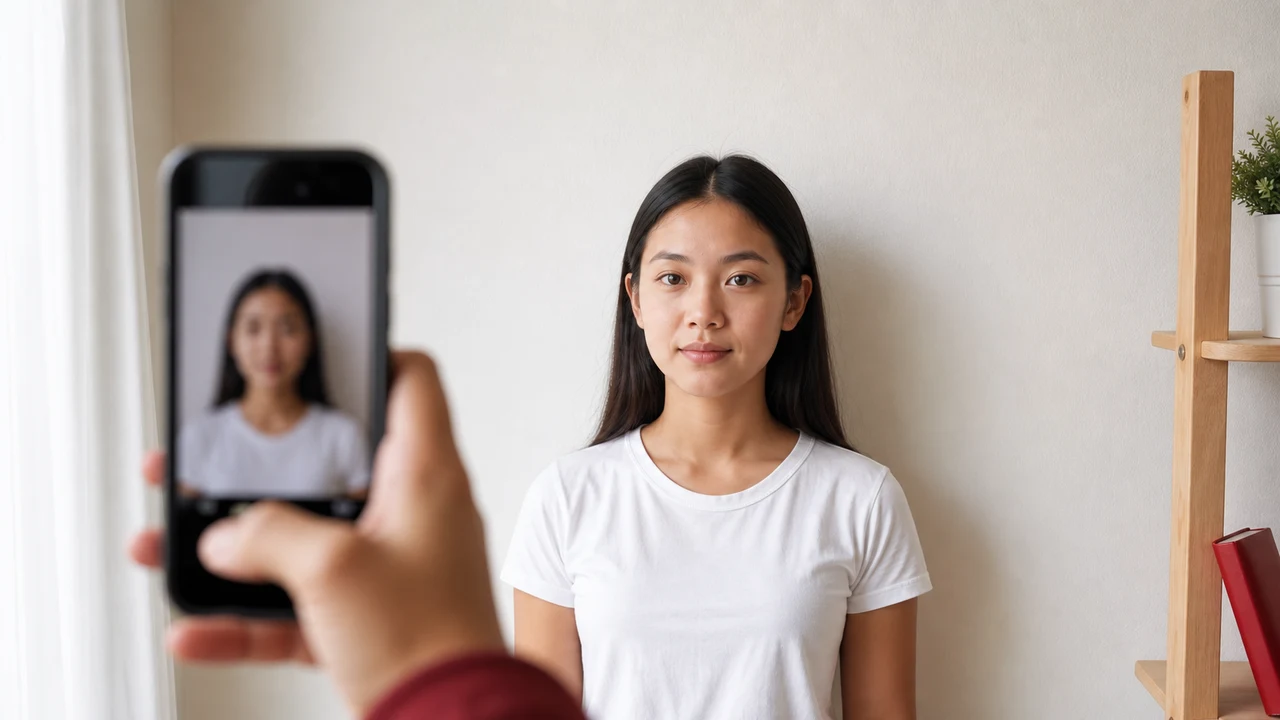
Most upload problems start before export. A steady camera, plain background, and level face make the final file much easier to prepare.
Checked: 2026-07-02
Quick check
- Use a bright plain wall or background.
- Keep the camera at eye height and avoid wide-angle distortion.
- Face forward with a neutral expression.
- Check the exported image, not only the camera preview.
Set up the place first
Stand a little away from a plain light background so the wall shadow does not sit directly behind the head. Face a window or soft light source rather than standing under a strong ceiling light.
Camera position
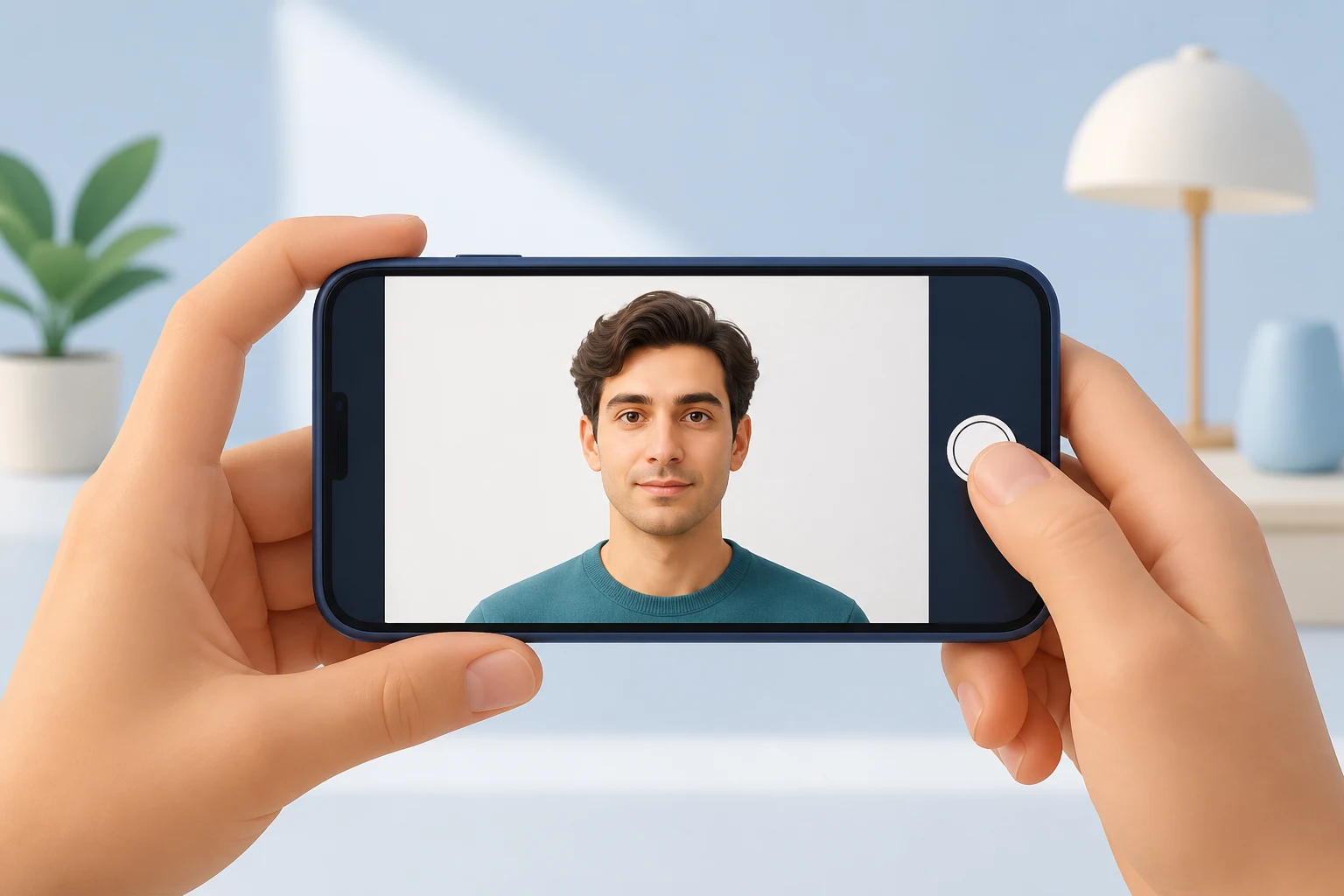
- Use the rear camera when possible for sharper detail.
- Hold the iPhone at eye height, parallel to the face.
- Step back enough to avoid a stretched nose or forehead from wide-angle distortion.
- Take several photos and choose the sharpest one at full size.

Before saving
Look for hair covering the eyes or face outline, glasses glare, uneven background shadows, and an expression that looks like a smile or grimace. Fix those before compression.
About the source information
These pages summarize public Indonesia eVisa portal information about Visitor Visa / eVOA document uploads, the registration photo notes, and the immigration photo-format PDF.
This website and app are independent file-preparation tools. They are not an Indonesian government, Directorate General of Immigration, embassy, or consulate service, and file preparation does not influence acceptance, entry, visa issuance, or an immigration decision.
Common Indonesia eVisa / eVOA Upload Mistakes to Avoid
Many Indonesia eVisa / eVOA uploads are slowed down by avoidable file errors. Check these points before you submit:
Different screens show different maximum sizes. Over-compressing to fit 200KB can make the face or MRZ unreadable, while trusting the 2MB hint may still get the file rejected by the upload field.
Reflections on the machine-readable zone or the photo field stop the data from being read. Photograph the bio page in flat, even light without flash.
The registration screen asks for a 4 x 6 cm photo at least 400 x 600 px. A face that is too large, too small, or the wrong aspect ratio can be rejected.
Cutting off a corner, the MRZ, or the photo field means the document cannot be verified. Keep the full bio page inside the frame.
Patterned walls, strong side light, or shadows across the face obscure facial features. Use a plain light background lit evenly from the front.
Saving as HEIC or a format the portal does not accept, or JPEG quality so low the face looks blocky, causes rejection. Export as JPG/JPEG/PNG.
Why Use the Indonesia Visa Photo App?
Check and resize the face photo and passport image so they meet the size shown on your application screen, without over-compressing until the text blurs.
Crop the page precisely so the MRZ, photo, and all text fields stay inside the frame and remain readable after export.
Your photos stay on your iPhone. Nothing is uploaded to a server while you prepare the files.
Output JPG/JPEG/PNG at the 4 x 6 cm / 400 x 600 px guidance so the file matches what the registration screen expects.
Note: shoumei.org is an independent helper tool that prepares image files only. It does not submit Indonesia visa applications and does not guarantee acceptance, visa issuance, or entry. Always confirm the latest requirements on the official Indonesia eVisa portal.
FAQ
Can I use Portrait Mode?
Avoid background blur for visa upload photos. A normal sharp image is easier to inspect and compress.
Can I crop from a group photo?
Do not use a group or travel photo. Take a new recent photo with only the applicant visible.
Source references
- Indonesia eVisa - foreign national account registration Checked: 2026-07-02
- Directorate General of Immigration - photo format PDF Checked: 2026-07-02
This website and app are independent file-preparation tools. They are not an Indonesian government, Directorate General of Immigration, embassy, or consulate service, and file preparation does not influence acceptance, entry, visa issuance, or an immigration decision.
Indonesia eVisa / eVOA guide articles
Create your photo in the browser
Prepare the photo for Indonesia eVisa directly in your smartphone or computer browser. Creating and reviewing are free.
What this tool creates
- the required face photo (for digital upload)
- the passport biographical data page (photo page) (for document upload)
Prepare the upload files on iPhone Download on the App Store