Saudi eVisa photo guide
Saudi eVisa photo upload error: fixes for size, format, and background
If the Saudi eVisa portal rejects your photo, do not keep re-uploading the same file. Work through format, dimensions, file size, and visible photo issues in order.
Last updated: July 7, 2026
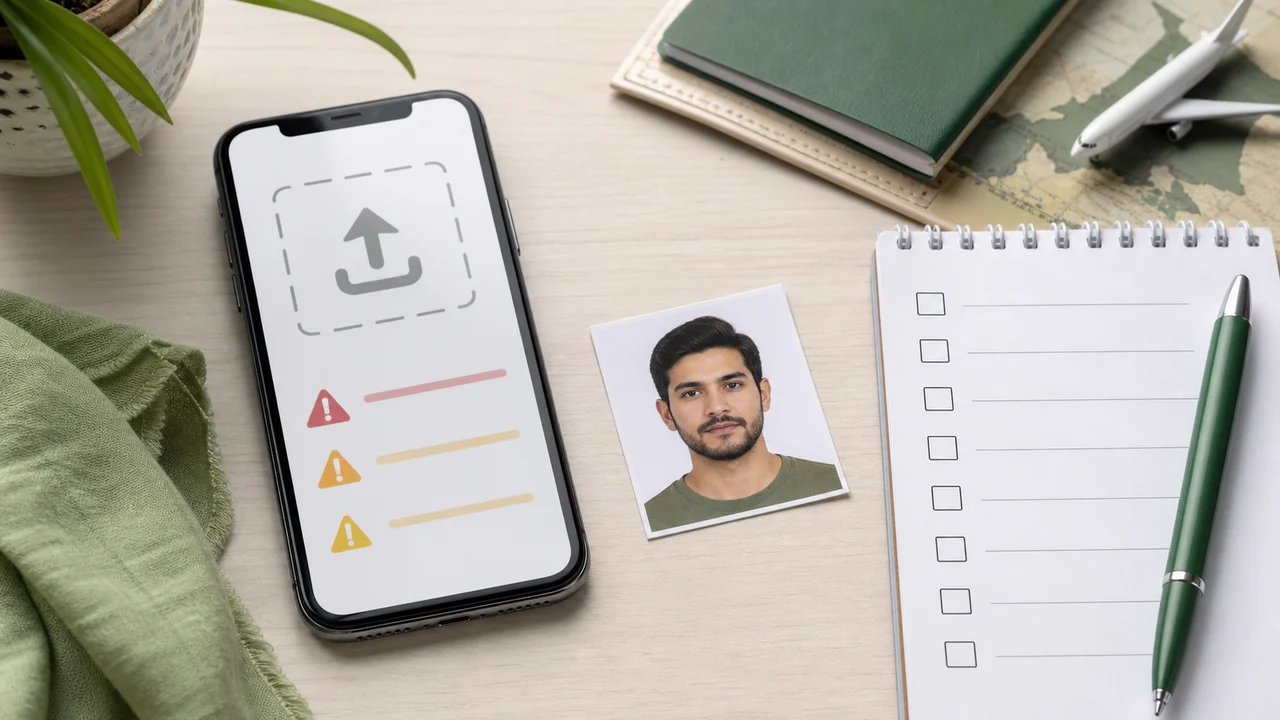
Quick answer
- First check file format not stated on the current official page, 200 × 200 (unit not stated on the current official page), and 5 KB–100 KB.
- Then check face position, white background, shadows, and spectacles are not specified on the current official page.
- Avoid screenshots, PDF exports, or photos saved from messaging apps.
- If the portal still fails, create a fresh export from the original photo.
Start with technical errors
Most upload errors happen before any visual review. The file may be PNG, HEIC, a screenshot, too large, too small, or a square image that is not actually 200 × 200 (unit not stated on the current official page).
Check the saved file itself. A preview inside Photos or a browser does not prove that the exported file has the right dimensions and size.
Then check visible photo quality
If the file passes technical checks but is still not suitable, look at the visible requirements: face centered, eyes open, spectacles are not specified on the current official page, no strong smile, border rule not stated on the current official page, no shadow, and a white background.
Avoid filters, beautification, face reshaping, or heavy background replacement artifacts. The photo should still look like a straightforward identity photo.
A clean retry flow
- Go back to the original high-quality photo.
- Crop around the full face with enough headroom.
- Export directly to 200 × 200 (unit not stated on the current official page) file format not stated on the current official page.
- Check the 5 KB–100 KB range.
- Upload from local storage, not a compressed chat-app copy.
How to use source information
Use the Saudi eVisa photo specification as the baseline for 200 × 200 (unit not stated on the current official page) file format not stated on the current official page photos. For Hajj/Nusuk or route-specific upload screens, confirm the latest requirement in the portal before submitting.
shoumei.org is an independent photo preparation tool. It is not a visa application service and does not guarantee acceptance or approval.
Mistakes to avoid
Most photo problems are visible before upload if you check size, background, face position, and file format in order.
A square-looking photo can still fail if it is not exactly 200 × 200 (unit not stated on the current official page).
Compression should keep the file format not stated on the current official page within the required 5 KB–100 KB range for Saudi eVisa.
A white wall with a strong shadow can still be treated as a poor background.
Eyes and facial outline need to be clear; remove spectacles are not specified on the current official page for the eVisa photo.
How Saudi Visa & Umrah Photo helps
Exports the face photo at the required square pixel size.
Optimizes JPEG size for upload instead of leaving you to trial-and-error compression.
Cropping, face-position checks, and export happen on the device.
Always compare the final file with the current portal instructions before upload.
FAQ
Why does my photo upload fail even though it is square?
A square image can be 500x500, 600x600, or another size. Saudi eVisa upload expects 200 × 200 (unit not stated on the current official page).
Can I upload a screenshot of the photo?
Avoid screenshots. They often create the wrong listed width and height, include margins, or save in the wrong format.
Should I edit the same file repeatedly?
No. Repeated compression can damage the photo. Start from the original image and make one clean export.
Source pages
- Visit Saudi - Saudi eVisa photo specifications Checked: 2026-09-03
- Visit Saudi - Saudi eVisa portal Checked: 2026-08-11
shoumei.org is an independent photo preparation tool. It is not a visa application service and does not guarantee acceptance or approval.
All Saudi visa photo guides
Create a 200x200 Saudi visa photo on iPhone Download on the App Store