Korea travel photo preparation
K-ETA photo upload error and 100 KB compression
When a K-ETA photo will not upload, the file is often technically wrong even if it looks fine in Photos.
Updated: 2026-07-08
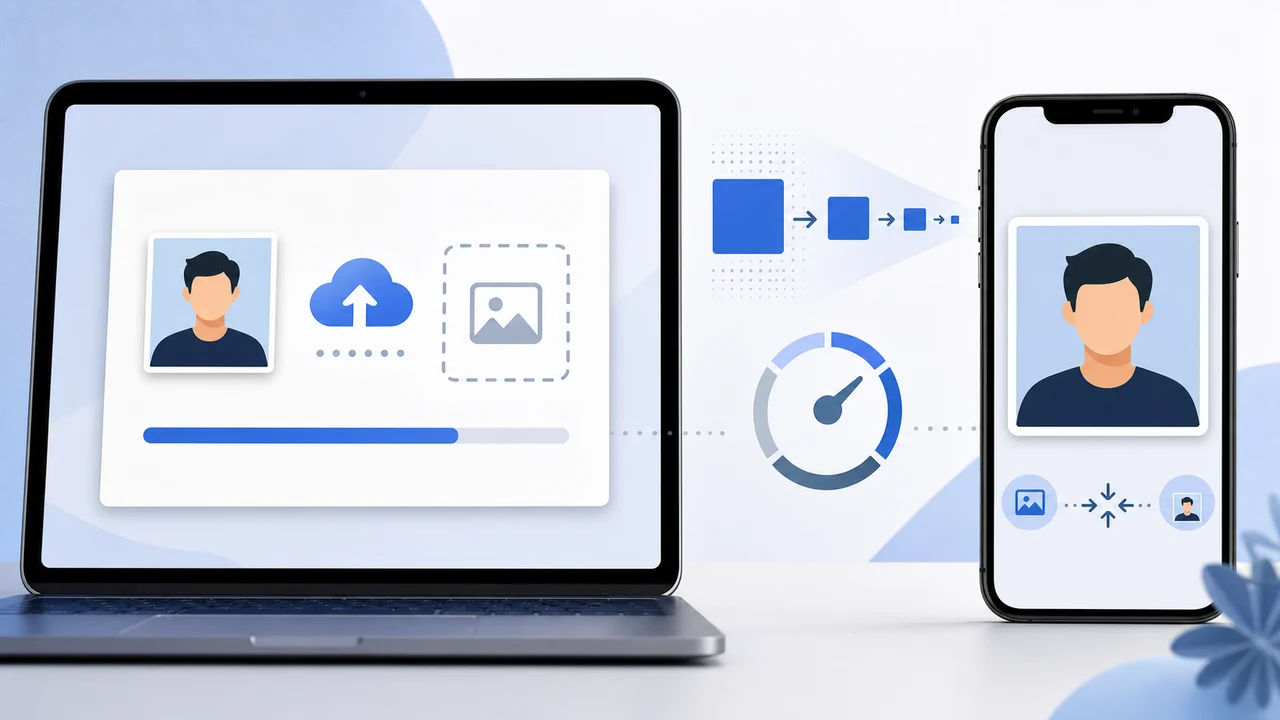
Quick summary
- Convert HEIC or PNG sources to JPG/JPEG before upload.
- Resize below the pixel ceiling before compressing under 100 KB.
- Open the final file and check that the face is still clear after compression.
Fix format first, then dimensions, then file size
A file extension alone does not guarantee the image is a suitable JPEG. iPhone photos may start as HEIC, and screenshots can be PNG. Export a real JPG/JPEG portrait file before worrying about size.
Next, resize the image to a square below the pixel ceiling. Finally, compress it under 100 KB. Compressing a huge original directly can create severe artifacts.
- Use JPG/JPEG
- Use a square portrait crop
- Keep below the pixel limit
- Keep under 100 KB
Do not sacrifice face clarity just to hit 100 KB
If the final JPG is blocky, blurry, or has strange edges around the face, retake or resize more carefully. A smaller, cleaner original often works better than aggressive compression.
If upload still fails, try a fresh export with no metadata, no transparency, and a simple filename using letters and numbers.
About official sources
These guides summarize public K-ETA guidance, Korea immigration notices, Korea visa e-Form document guidance, and Korea Visa Portal references. They focus on photo preparation only, not eligibility advice or application submission.
This website and app are independent photo file preparation tools. They are not affiliated with the Korean government, Korea Immigration Service, K-ETA, Korea Visa Portal, or any Korean diplomatic mission, and they do not guarantee photo acceptance, authorization, visa issuance, or entry.
Common photo problems
Most failures are ordinary image problems, not complicated visa rules.
A phone photo can be several MB. Resize first, then compress, so the face remains sharp under the limit.
Do not upload a print sheet, a passport scan, or a photo of a printed photo when the portal expects a portrait file.
Shadows, glare, heavy filters, hair over the eyes, or a tilted face can make identity confirmation harder.
Where the app helps
Exports a 600 x 600 px JPG for K-ETA-style upload limits.
Photo processing happens on the iPhone; the app does not upload your image to a server.
Use the 35 x 45 mm Korea visa mode when your application needs a visa photograph rather than a K-ETA portrait upload.
The app prepares the photo file only. Submit your application through the official route and confirm the latest requirement before using the file.
FAQ
Why is my photo under 100 KB but still rejected?
It may still have the wrong pixel dimensions, wrong format, unclear face, a nonstandard file, or a portal-side issue. Re-export as a simple square JPG and inspect the final image.
Can I just screenshot the photo?
Screenshots can create PNG files, wrong dimensions, or visible UI artifacts. Export a proper JPG instead.
Should I remove EXIF metadata?
A simple export without extra metadata can reduce file size and avoid odd compatibility issues. The app saves a clean JPG for this reason.
Official sources
- K-ETA official application guide Checked: 2026-07-08
- Korea Immigration / Ministry of Justice - K-ETA press release and FAQ Checked: 2026-07-08
This website and app are independent photo file preparation tools. They are not affiliated with the Korean government, Korea Immigration Service, K-ETA, Korea Visa Portal, or any Korean diplomatic mission, and they do not guarantee photo acceptance, authorization, visa issuance, or entry.
K-ETA and Korea visa photo articles
Prepare a K-ETA photo on iPhone Download on the App Store